How to Transfer a Squarespace Site to Another Account
If you have a Squarespace site*, you can transfer ownership of the site to someone else. This is useful if you’re a designer who needs to transfer a site to a client, or if your business has changed hands.
In this guide, we’ll explain step-by-step how to transfer a Squarespace site to another account, what does and doesn’t carry over, and what you should check after transferring to make sure it’s all moved smoothly.
Affiliate disclosure: Some of the links in this article are affiliate links, marked with an asterisk (*). Studio Founded may receive a commission from qualifying purchases made through these links, at no additional cost to you. You can read our full affiliate disclosure here.

The Liren Squarespace template by Studio Founded.
I. Prepare Your Site for Transfer
Before you transfer your Squarespace site, start by checking that the site is ready to be moved:
Audit Your Integrations
Services like PayPal, Stripe, and social media connections don’t move with your site, and the new owner will need to reconnect them after site transfer. Make a list of any services connected to your site so the new owner knows what needs to be reconnected.
Create Site Backups
If needed, you can duplicate the site to create a backup. It doesn’t copy everything, but it gives you a fairly complete version to refer back to.
Confirm You’re the Site Owner
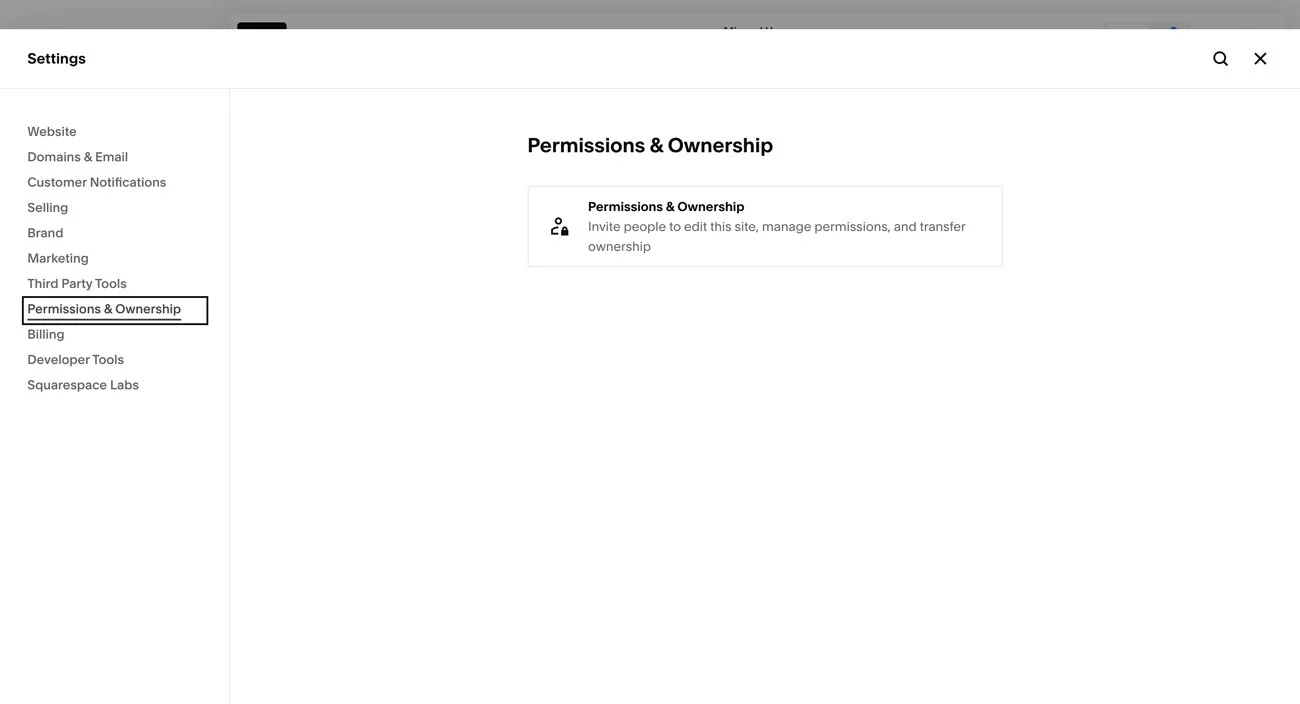
Only the Site Owner can transfer ownership, so double-check that you’re an Owner before proceeding. You can do this via Settings > Permissions & Ownership, where you should see “Owner” above your name.
II. Invite the New Owner as a Contributor
Next, you’ll need to invite the new owner to the site.
Invitation
Open your Squarespace website and visit > Settings > Permissions and Ownership > Invite Contributor.
Add Their Details
Enter the name and email of the person who will become the new site owner, then send the invitation.
Contributor Email
Squarespace will send them an email invitation inviting them to become a Contributor on your site. They’ll need to click the Accept button in the email to link your website to their account.
III. Transfer Site Ownership
Transfer
Once the new Contributor has accepted your invitation, you can return to Settings > Permissions.
Next to your name you’ll see a button that says Transfer Ownership. You may be asked to verify your identity before you continue.
Once verified, select the new owner from the dropdown menu.
Confirm
If you’d like to go ahead, confirm the transfer when prompted. The person you selected will become the new site owner.
Transfer is immediate and cannot be undone without the new owner manually transferring the site back, so make sure you’re ready before confirming.

What Happens After You Transfer a Squarespace Site?
Here’s what happens next:
Contributor Status
You’ll remain on the site as a Contributor unless you remove yourself or the other person removes you. This is useful if you’re a designer who wants to be able to easily access the site to offer support and updates.
If you no longer want to remain on the site, you can remove yourself by visiting your Squarespace dashboard > Find the site you want to remove yourself from > Select the three dots (…) button on the right > Select Remove Me from the dropdown menu.
Site Subscription
If the site has an active Squarespace subscription*, it will transfer to the new Site Owner.
However, the payment method doesn’t automatically change. The new owner should update the billing information after the transfer so you aren’t charged when the subscription renews. You can remove your billing information before transfer to make sure you aren’t charged for future subscriptions.
Domain
If you have a Squarespace domain* connected to the site, transferring ownership will also transfer the domain. The new owner should review the domain’s registration and update it where needed.
Google Workspace
If you have a Google Workspace subscription attached to the site, it will transfer with site ownership. The new owner should review and update the billing information after transfer.
Acuity Scheduling
Acuity Scheduling subscriptions purchased through Squarespace also transfer with site ownership. However, Acuity subscriptions purchased through Acuity need to be transferred separately.
What Doesn’t Automatically Transfer?
Here are the part that need to be moved manually when you transfer a Squarespace site:
Third-party Domains
Domains registered with third-party providers like GoDaddy or Namecheap don’t transfer ownership with your Squarespace site. If the new owner needs control of the domain, you’ll need give them access to the registrar account or initiate a domain transfer.
Squarespace Payments
Squarespace Payments is Squarespace’s payment system. If you have Squarespace Payments set up on the site and are a Payments Manager, you can transfer the role to the new Site Owner. The new Payments Manager should review the account and business details after transfer.
Third-party Services
The new Site Owner will need to re-connect tools like Stripe, PayPal, Afterpay, ShipStation, and social media accounts under their own logins.
Any integrations tied to personal details (like affiliate platforms, custom email marketing tools (like Flodesk* or Klaviyo*, or shipping accounts) stay with whoever owns them. The new owner will need to set up their own accounts and integrate them.
FAQs
Can multiple Site Owners exist?
A Squarespace site can only have one Site Owner.
Can contributors transfer Squarespace site ownership?
Only the current Site Owner can transfer ownership.
Can I undo a Squarespace ownership transfer?
Transfers are immediate and can’t be reversed automatically. If ownership needs to change again, the new Site Owner needs to manually transfer the site back.
Does transferring a Squarespace site affect SEO?
No. The pages, URLs, and SEO settings will remain unchanged.
Can I transfer a Squarespace subscription to another website?
A. You cannot typically move subscriptions between sites. However, if you are transferring ownership of a site, the subscription moves with the site’s ownership.